
Density & curvature paint
Use paint maps to redistribute the quad budget or adjust how strongly the flow follows surface curvature.
On this page
Read the density map
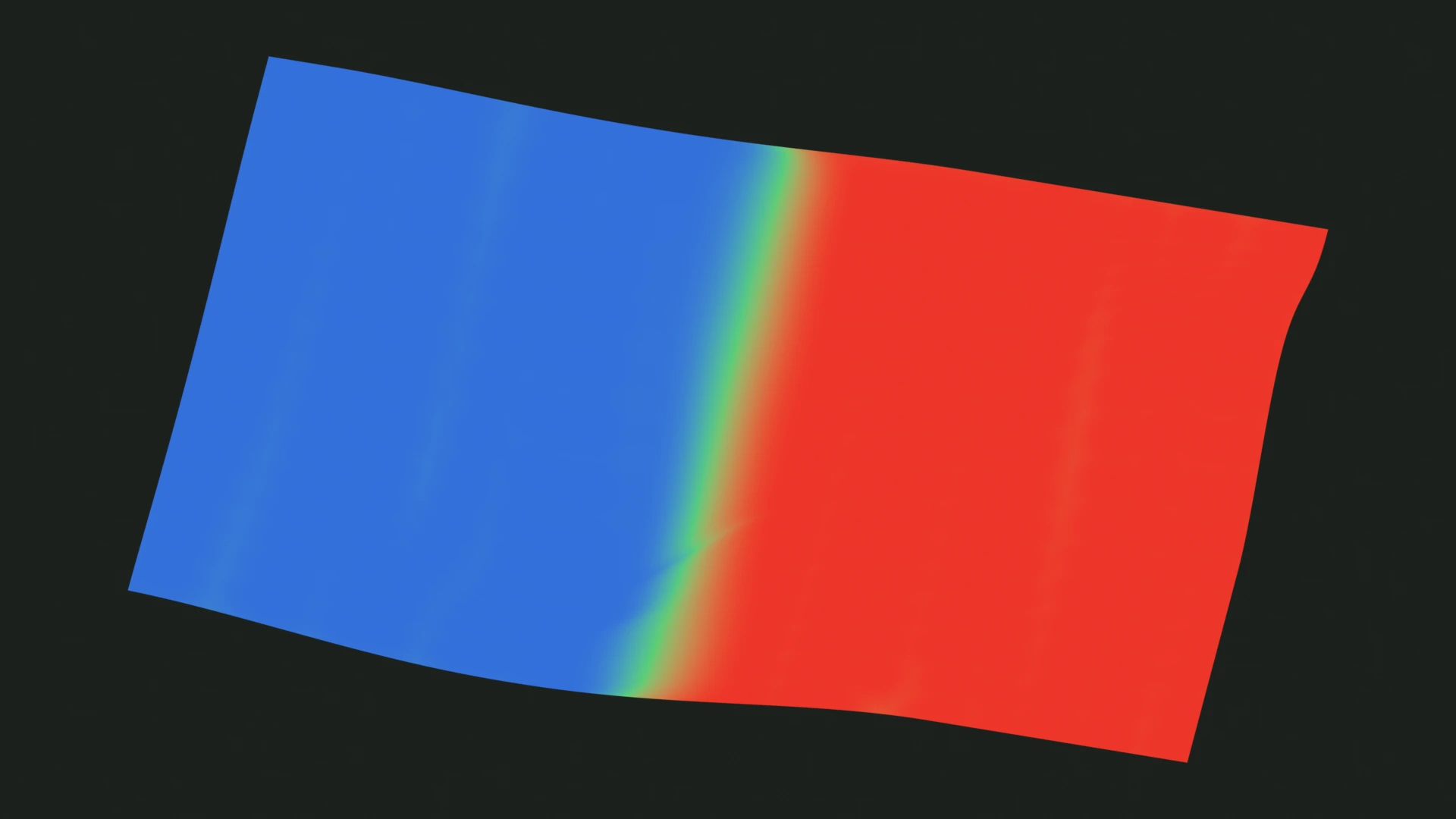
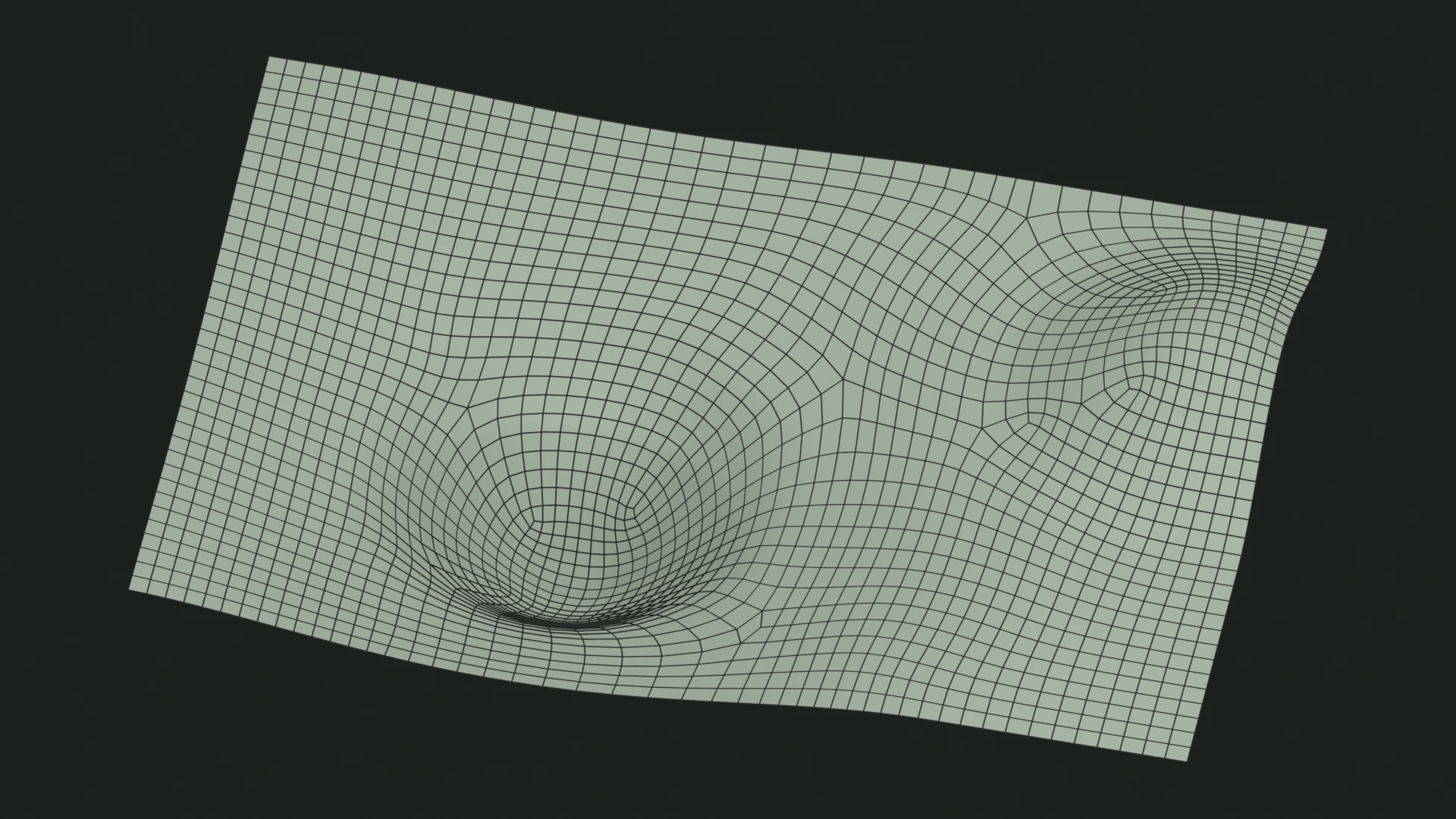
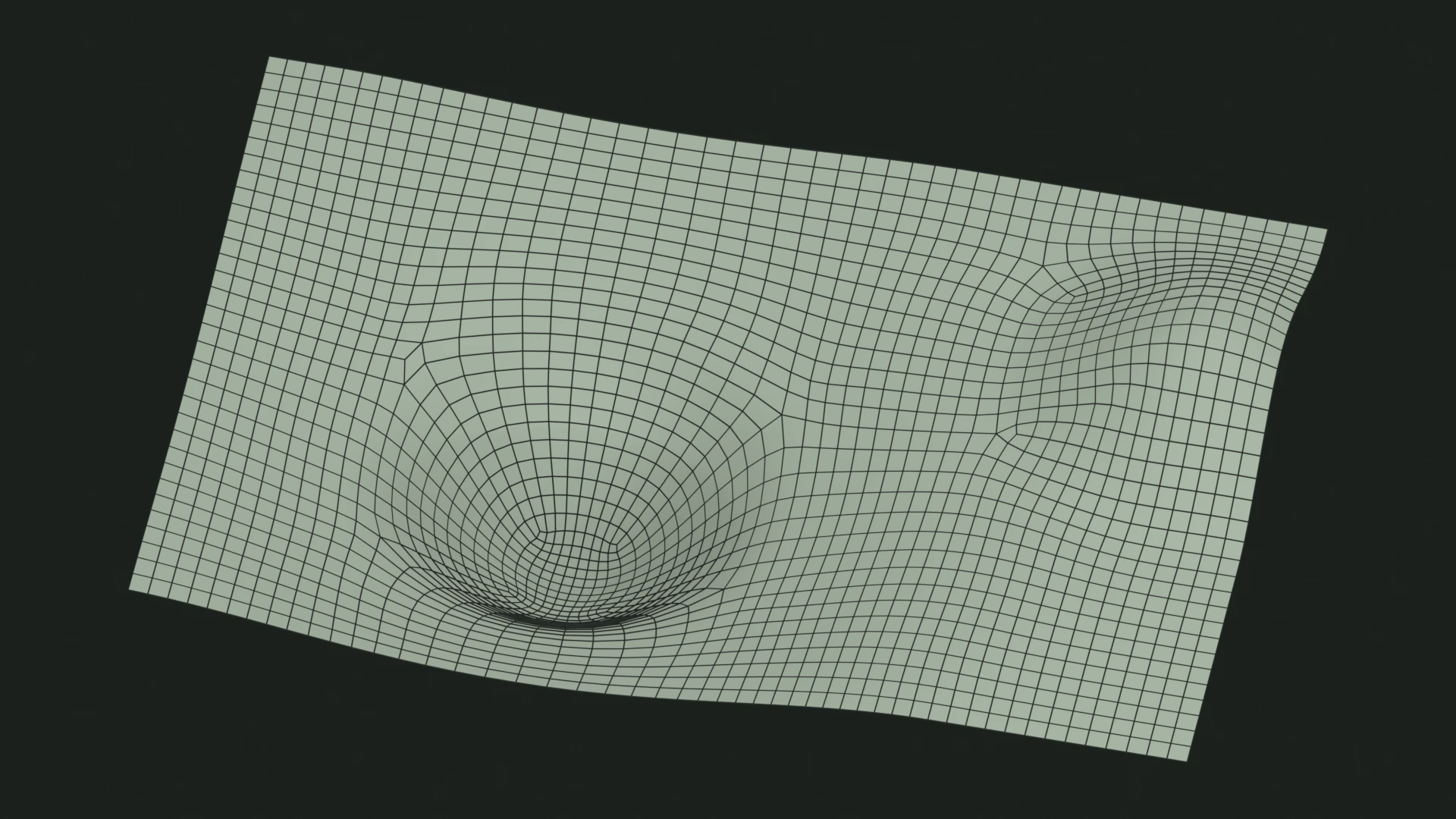
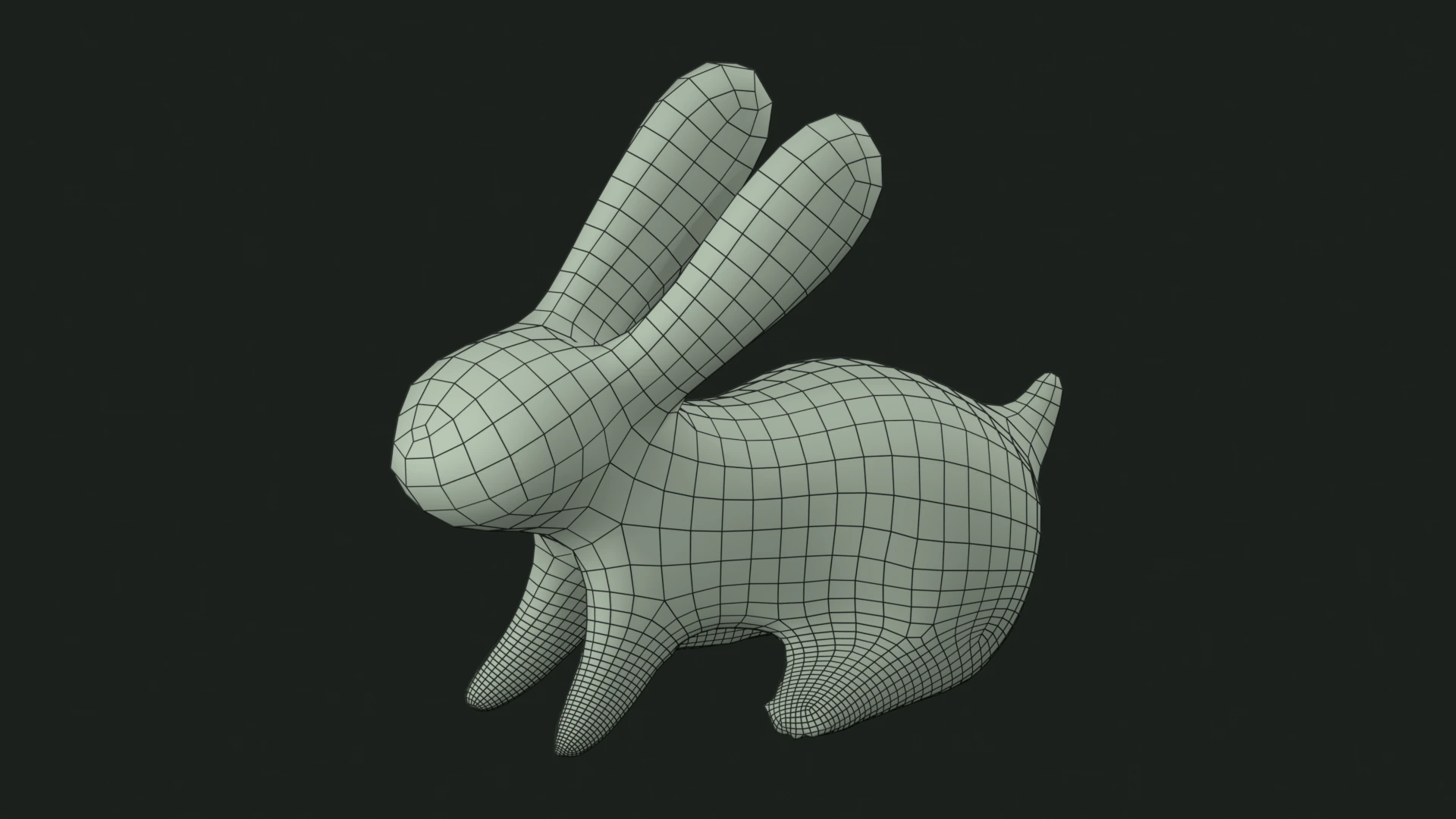
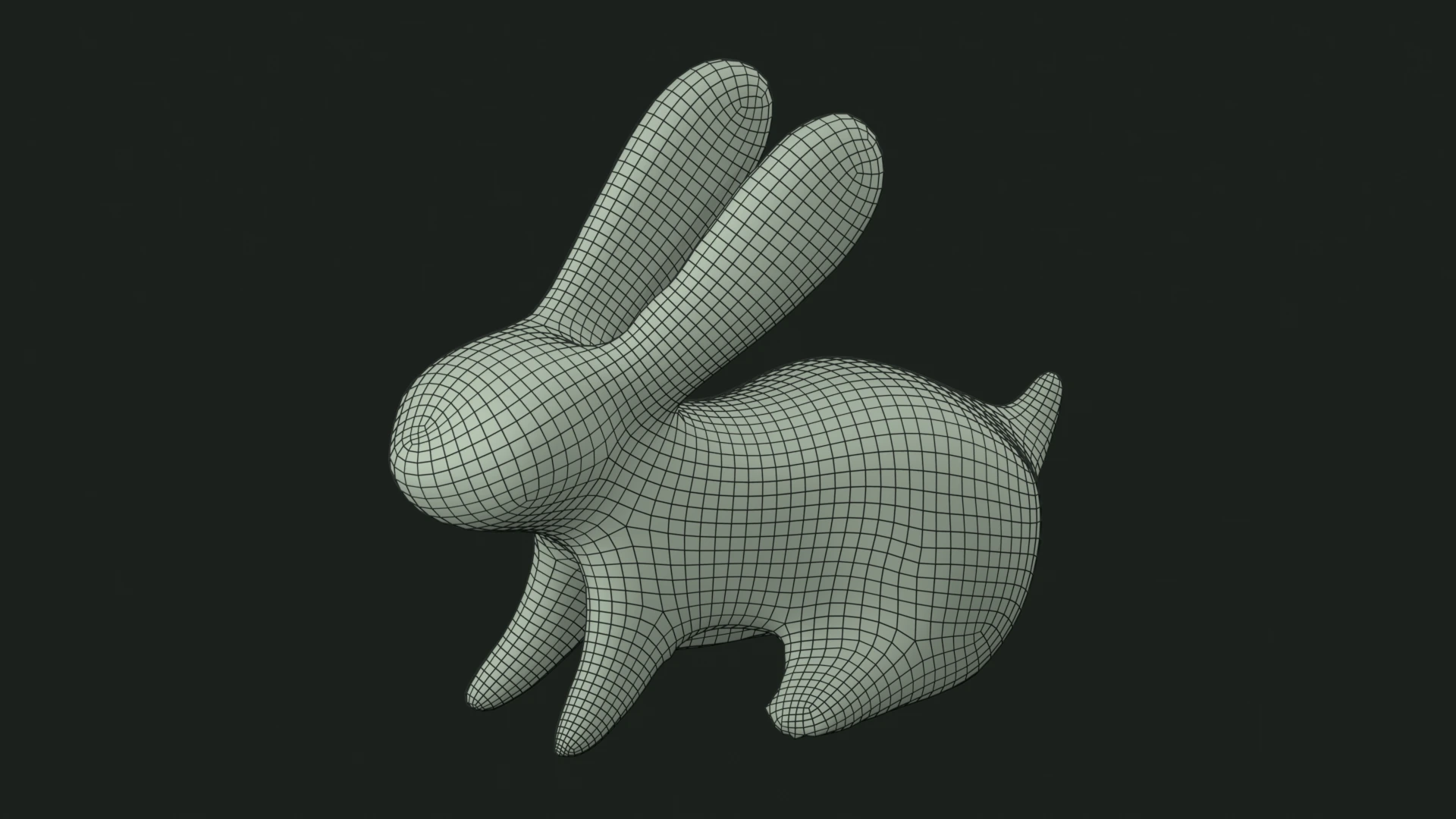
00.51Uniform painting does not increase the total quad count. Increase Target quads when you need a larger overall budget.
Paint, finish, remesh
- Open Quad Density Paint.
Choose a
Paint weight: 0 for fewer quads, 0.5 for neutral, or 1 for more quads. - Paint the source.
Click
Paintand brush over the regions you want to affect. - Finish painting.
Select
Finish paintingbefore remeshing. - Apply the map.
Enable
Apply map, setInfluence, and runRemesh. An influence of 0 has no effect.
Use Reset to restore the entire map to neutral.
Mirror paint strokes
Symmetry paint mirrors brush strokes around the object origin on the chosen X, Y, or Z axes. It is independent of Exact Symmetry.
Copy or link maps
- Copy / Paste
- Transfers a map between meshes with matching topology and vertex order. Copy from the source, select the matching mesh, and Paste in the intended channel.
- Copy to Curvature / Copy to Quad Density
- Copies the current map to the other channel once. Later edits to the original map do not update that copy.
- Also use for curvature / Also use for quad density
- Uses one map live for both effects. Enable Apply map on the supplying channel before linking it. Only one live link can be active at a time; enabling the reverse link turns the first one off.
A linked panel shows Input: Quad Density map or Input: Curvature map and disables its own Apply map switch. Each effect keeps its own Influence control. The other channel's separate map is preserved and becomes available again when you turn off the link.
Curvature Intensity Paint Experimental
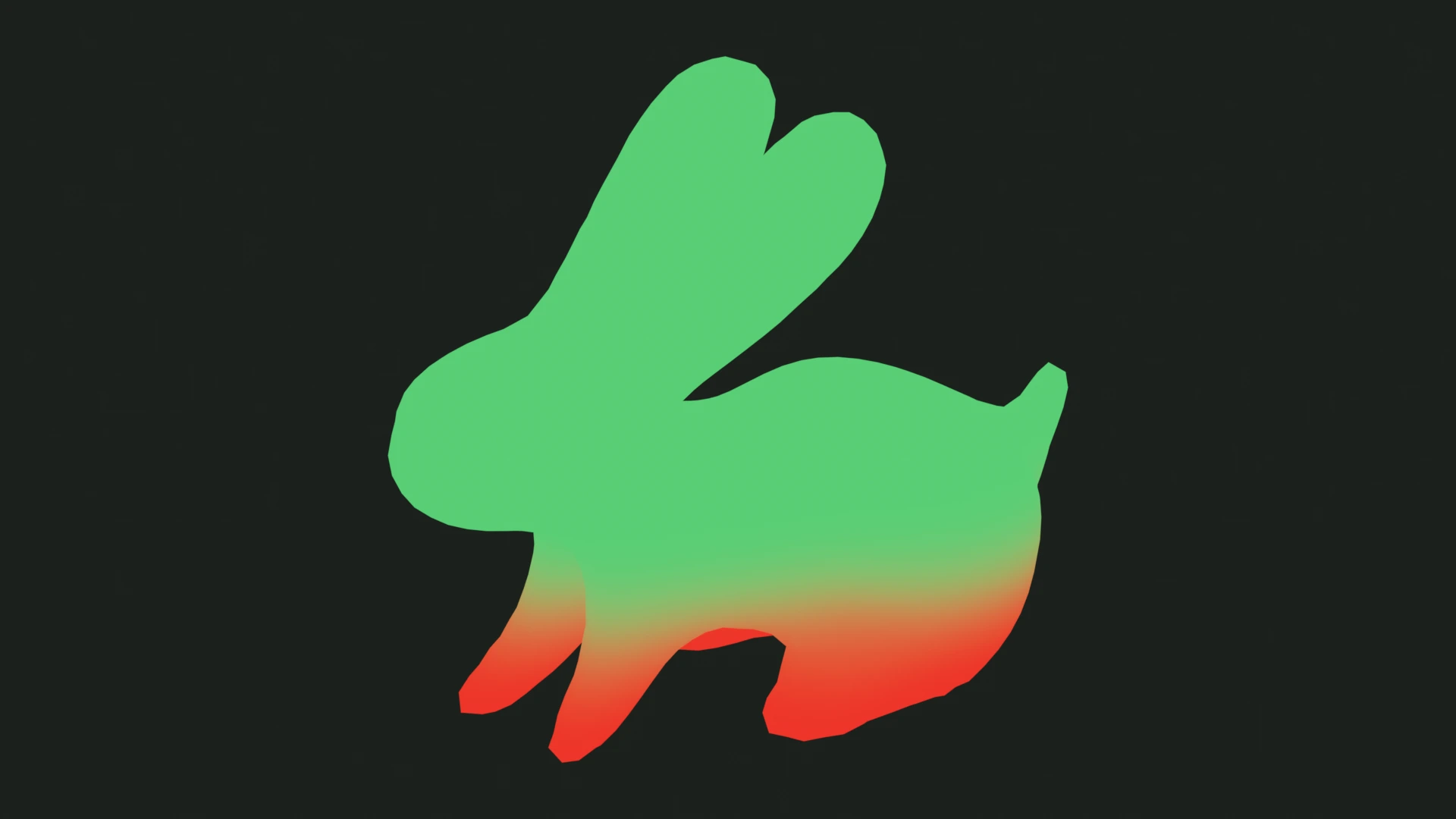
This separate map changes alignment with surface curvature. Blue means weaker alignment, green is neutral, and red means stronger alignment.
It uses the same painting controls as Quad Density Paint. Use it when you want to adjust flow direction, rather than the allocation of quads.